
로그인 선택
미리보기
커뮤니티

 23.06.15
글 등록
DEVOTEE를 활성화 시키면
지금 작성한 커뮤니티 글에 대해 1개의 댓글을 달아줍니다.
버튼을 누르면 글 수정 시 ChatGPT가 작성한 댓글이 수정됩니다.
임시저장함
최대 20건까지 저장합니다.
| 컨텐츠 유형 | 제목 | 저장일 | 삭제 |
|---|

본인인증
고객님의 소중한 개인정보보호를 위해
본인인증을 진행해주세요. 본인인증 미 진행 시 로그인이 제한됩니다.
본인인증 로그인에 실패하였습니다.
회원이 아니시거나 본인인증 등록이
완료되지 않은 사용자입니다.
회원정보 연결
Github Action 을 cli 로 manual 하게 호출하기

최근 github action 을 workflow CI/CD 로 활용하는 사례가 점점 늘어나고 있다. 이전 글인 "10분만에 만드는 Docker image 저장 자동화"도 github action 을 활용하여 docker registry 에 컨테이너 이미지를 빌드하고 push 하는 방법을 설명하였다.
이번에는 github action 을 client cli 를 활용하여 원하는 시점에 manual 로 호출하는 방법을 알아보자.
1. 새로운 github repository 만들기
먼저 github repository 를 만들어 clone 한다.
$ git clone https://github.com/seungkyua/github-action-sample.git
$ cd github-action-sample
2. workflow action 파일 만들기
github action 을 위한 .github/workflows 디렉토리를 생성하고 action 파일인 hello.yaml 파일을 만든다. 디렉토리 명이 workflow 가 아닌 workflows 이니 실수하지 않게 조심하자.
$ mkdir -p .github/workflow
$ touch .github/workflows/hello.yaml
hello.yaml 은 다음과 같다.
name: Hello

on:
  workflow_dispatch:
    inputs:
      greeting:
        required: false
        default: 'Hello'
        type: string
      name:
        required: false
        default: 'Seungkyu'
        type: string

jobs:
  build:
    runs-on: ubuntu-latest
    steps:
      # Checks-out your repository under $GITHUB_WORKSPACE, so your job can access it
      - uses: actions/checkout@v2

      - name: Run hello.sh
        run: |
          set -xe
          chmod +x .github/workflows/hello.sh
          .github/workflows/hello.sh ${{ github.event.inputs.greeting }} ${{ github.event.inputs.name }}
workflow 에서 parameter 를 받기 위해서는 workflow_dispatch: 를 명시적으로 선언하고 parameter 는 inputs 아래에 기술한다. inputs 아래 나오는 이름이 parameter 명이 되며 필수 여부, 기본값, 타입 등을 지정할 수 있다.
여기서는 'greeting' 과 'name' 이라는 2개의 parameter 를 받는 다고 선언하였다.
다음은 workflow step 인데 첫번째 actions/checkout@v2 는 현재의 github repository 소스를 다운 받는 다는 의미이다. 두번째 name: Run hello.sh 는 run: 으로 shell 을 실행하겠다는 의미이며, 앞 단계에서 소스를 다운받았으니 hello.sh 을 실행할 수 있게 되었으며, 실제로 hello.sh 을 실행하면서 parameter 를 argument 로 호출한다.
parameter 는 ${{ github.event.inputs.파라미터명 }} 과 같이 활용할 수 있다.
다음은 간단산 hello.sh 쉡스크립트 이다.
#!/bin/bash

if [ $# -eq 1 ]; then
  greeting=$1
elif [ $# -eq 2 ]; then
  greeting=$1
  name=$2
fi

echo "[hello.sh] ${greeting} ${name}\n"
이제 해당 파일들을 github 에 push 한다.
3. workflow 호출하기
github workflow client 를 다운 받는다. mac 에서는 brew 로 간단히 설치할 수 있다.
$ brew install gh
github-action-sample 소스를 clone 한 디렉토리에서 gh auth login 으로 github 에 로그인 한다.
$  gh auth login
? What account do you want to log into?  [Use arrows to move, type to filter]
> GitHub.com
  GitHub Enterprise Server
GitHub.com 을 선택하고 엔터를 치면 아래의 내용이 나온다.
? What account do you want to log into? GitHub.com
? You're already logged into github.com. Do you want to re-authenticate? (y/N) y
이미 로그인을 했기 때문에 다시 로그인 하겠다는 의미이며 처음이면 로그인 하라는 메세지가 나온다. y 로 선택하고 로그인을 하자.
? What account do you want to log into? GitHub.com
? You're already logged into github.com. Do you want to re-authenticate? Yes
? What is your preferred protocol for Git operations?  [Use arrows to move, type to filter]
> HTTPS
  SSH
HTTPS 를 선택한다.
? What account do you want to log into? GitHub.com
? You're already logged into github.com. Do you want to re-authenticate? Yes
? What is your preferred protocol for Git operations? HTTPS
? Authenticate Git with your GitHub credentials? (Y/n) y
y 로 Github credentials 로 로그인을 한다.
? What account do you want to log into? GitHub.com
? You're already logged into github.com. Do you want to re-authenticate? Yes
? What is your preferred protocol for Git operations? HTTPS
? Authenticate Git with your GitHub credentials? Yes
? How would you like to authenticate GitHub CLI?  [Use arrows to move, type to filter]
  Login with a web browser
> Paste an authentication token
token 으로 로그인을 한다.
? What account do you want to log into? GitHub.com
? You're already logged into github.com. Do you want to re-authenticate? Yes
? What is your preferred protocol for Git operations? HTTPS
? Authenticate Git with your GitHub credentials? Yes
? How would you like to authenticate GitHub CLI? Paste an authentication token
Tip: you can generate a Personal Access Token here https://github.com/settings/tokens
The minimum required scopes are 'repo', 'read:org', 'workflow'.
? Paste your authentication token: ****************************************
정상적으로 login 이 되면 아래와 같이 표시된다.
- gh config set -h github.com git_protocol https
✓ Configured git protocol
✓ Logged in as seungkyua
로그인 후에 gh workflow list 명령어로 workflow 를 조회하면 아래와 같이 Hello 란 workflow 가 있음을 알 수 있다.
➜ github-action-sample git:(main) gh workflow list
Hello  active  14639329
이를 실행해 본다.
$ gh workflow run hello.yaml -f greeting=Welcome -f name=Seungkyu
실행 중인 workflow 를 조회할 수 있다.
$ gh run list --workflow=hello.yaml
STATUS  NAME            WORKFLOW  BRANCH  EVENT              ID          ELAPSED  AGE
*       Initial commit  Hello     main    workflow_dispatch  1390917347  7s       0m
완료된 후의 workflow 를 조회하면 STATUS 가 완료로 체크되어 있다.
$ gh run list --workflow=hello.yaml
STATUS  NAME            WORKFLOW  BRANCH  EVENT              ID          ELAPSED  AGE
✓       Initial commit  Hello     main    workflow_dispatch  1390917347  15s      2m
웹 브라우저로 repository https://github.com/seungkyua/github-action-sample 에 접속하여 Action 탭의 build 를 클릭해보면 아래의 화면 처럼 '[hello.sh] Welcome Seungkyu\n' 가 출력되어 있음을 알 수 있다.
.png)
4. 활용법
manual 하게 github action 을 호출하는 부분은 다른 workflow tool 과 같이 사용할 때가 많다. 예를 들면 argo workflow 에서 하나의 단계로 github action 을 필요한 시점에 호출하여 결과를 활용하는 등으로 사용할 수 있다.
github action 은 github 의 리소스를 활용하므로 CI 에서 많은 리소스가 필요할 때는 github action 을 같이 활용하는 것도 좋은 대안이 될 것이다.
seungkyua 님의 최신 블로그
더보기-

- Kubernetes 배포 및 설정 단계별 설명
- Kubernetes 로 개발을 하다보면 이를 위한 cluster 가 하나씩은 있어야 한다. 로컬에 vm 이나 클라우드에 싱글 vm 을 받았다면 아래와 같이 kubeadm 을 활용하여 나만의 클러스터를 구축할 수 있다. 단계적으로 설정하는 방법을 설명하고 있으니 이를 그대로 따라하면 된다. 1. sudo 사용자 추가, 보안 s/w 내리기, swap off $ sudo adduser ask $ cat 〈〈 EOF | sudo tee /etc/sudoers.d/sudoers-ask ask ALL=(ALL:ALL) NOPASSWD:ALL EOF $ sudo systemctl stop ufw $ sudo systemctl disable ufw $ sudo systemctl...
-
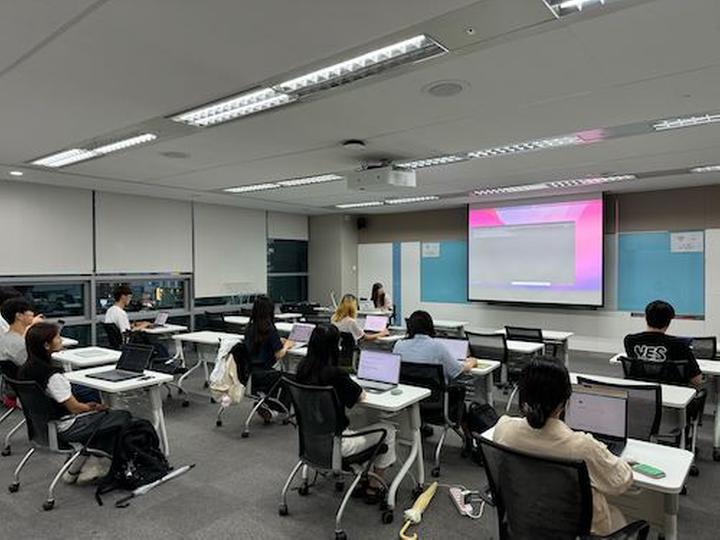
- OpenLab - Deep Dive Kubernetes 7번째 마지막 스터디
- 벌써 마지막 스터디네요. 처음 쿠버네티스의 기본 개념과 활용법을 스터디하고, ArgoCD 를 활용한 GitOps CD 를 공부하고, Go 언어와 커스텀 컨트롤러를 거쳐서, Kubeflow 까지 왔습니다. 7/16(화)에는 OpenLab - Deep Dive Kubernetes 스터디 7번째 마지막 모임이 있었습니다. 이번 스터디 주제는 Kubeflow 의 활용법 입니다. Kubeflow 의 기능은 다양한데, 대표적인 기능이 Pipeline 을 활용한 workflow 만들기와 Katib 를 이용한 hyperparameter tuning, 그리고, KServe 를 활용한 모델 서빙이 있습니다. 오늘은 위 3가지를 모두 공부했습니다. 1가지만 해도 2시간 이상은 필요한...
-
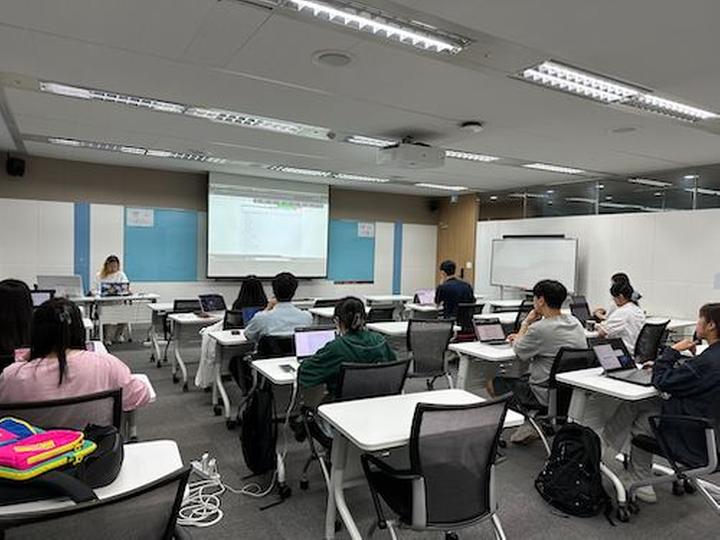
- OpenLab - Deep Dive Kubernetes 6번째 스터디
- 안녕하세요. 7/2(화)에는 OpenLab - Deep Dive Kubernetes 스터디 6번째 모임이 있었습니다. 이번과 마지막 7번째 스터디 2회에 걸쳐서 Kubeflow 에 대해서 공부합니다. 이번 스터디 주제는 Kubeflow 설치 및 대시보드 띄우기입니다. Kubeflow 는 많은 컴포넌트로 구성되어 있어 설치하는 것만도 쉽지가 않습니다. 그래서 이번에는 Kubeflow 를 설치하고 화면을 직접 접속해 보는 것을 스터디 주제로 정했습니다 물론, 다음 마지막 스터디에서는 Kubeflow 를 어떻게 활용하는지 활용 방법과 기능에 대해서 살펴볼 예정입니다. 금번 스터디 내용은 아래와 같습니다. Kubeflow Kubeflow 설치하기 KServe 설치하기 (...
-

- OpenLab - Deep Dive Kubernetes 5번째 스터디
- 안녕하세요. 지난 6/17(월)에는 OpenLab - Deep Dive Kubernetes 스터디 5번째 모임이 있었습니다. 이번 모임으로 벌써 스터디의 2/3 가 지났네요. :) 이번 스터디 주제는 지난번 스터디의 연속인 custom controller 만들기 두번째 입니다. 지난번 스터디가 Custom Controller 를 만들기 위한 Go 언어에 대한 스터디 였다면, 이번에는 Kubebuilder 로 직접 Go 언어 코드 프로그래밍을 해보는 시간이었습니다. 금번 스터디 내용 Kubebuilder https://book.kubebuilder.io/ kubebuilder 아키텍처 살펴보기 controller-runtime 은 무엇인가? kubebuilder 로...

DEVOTEE를 활성화 시키면
지금 작성한 댓글에 AI가 댓글을 달아줍니다.